
A terminal manager for all your running AI agents.
Give each session a note of what you set it working on, so a row of eight terminals still tells you something an hour later. Group them by topic or watch them all at once, start one with the folder and environment it needs, copy an agent's answer out without the terminal's line breaks, and paste the instructions you keep retyping. Every session keeps running whether or not it is on screen.
Version 0.8.2 · $14.99, paid once
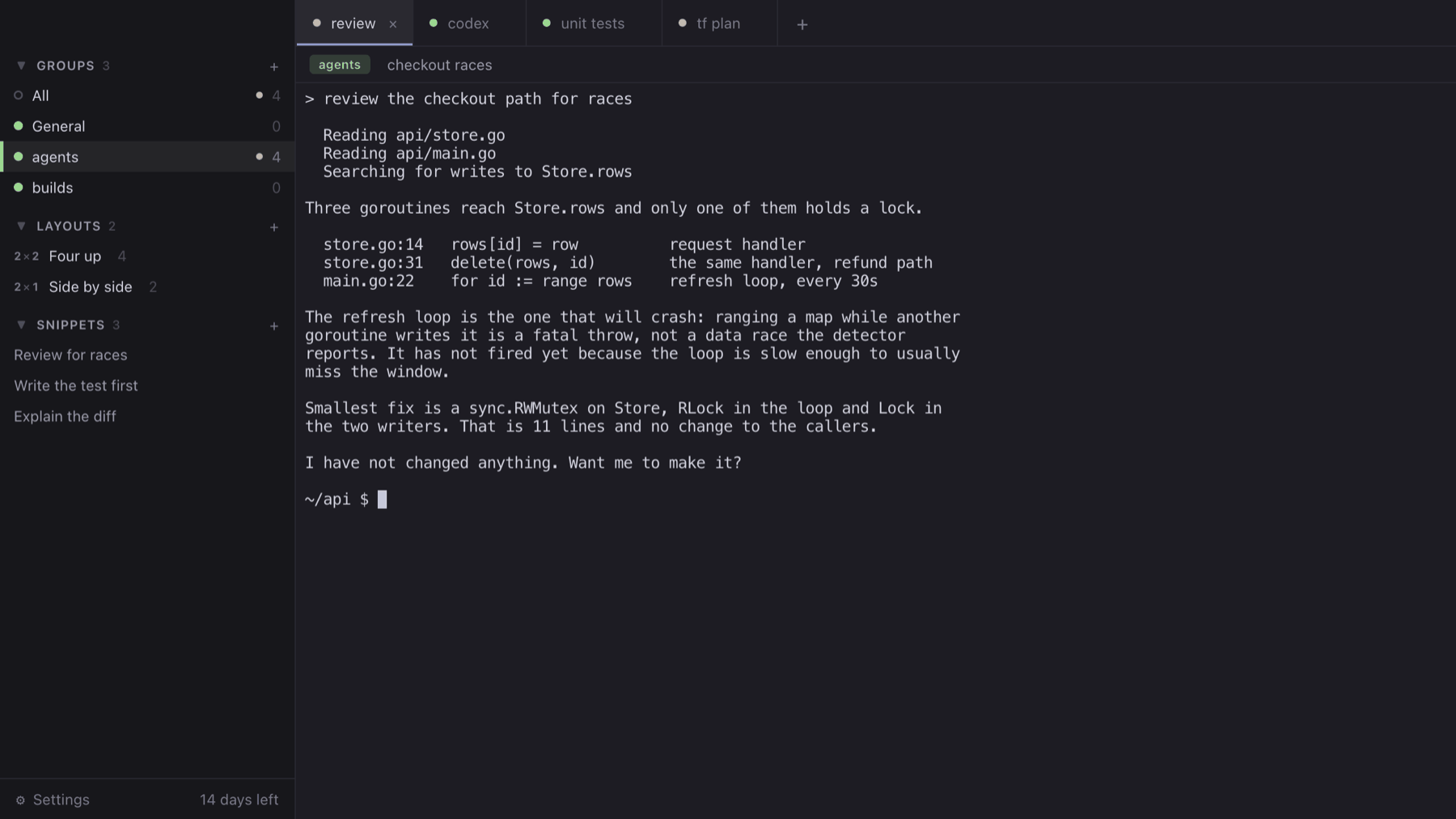
What it does
Sessions run whether or not they are on screen
Each session owns its own process and keeps producing output while a different one is displayed. Every tab reports whether its session is working, has finished, or is waiting for input.
Switching does not touch the terminal
Moving between sessions does not rebuild, reconnect, or replay a terminal. Scrollback, scroll position, and a partially typed command line are all unchanged when you come back.
A note on each session, so you know what it is for
Eight terminals an hour later all look alike, and a tab can only hold a name. Each session takes a note in its own words, written when you start it or any time after, and it is shown on the session's header and on its pane in a layout. You can see what you set an agent working on without reading back through its scrollback.
Panes, for reading several at once
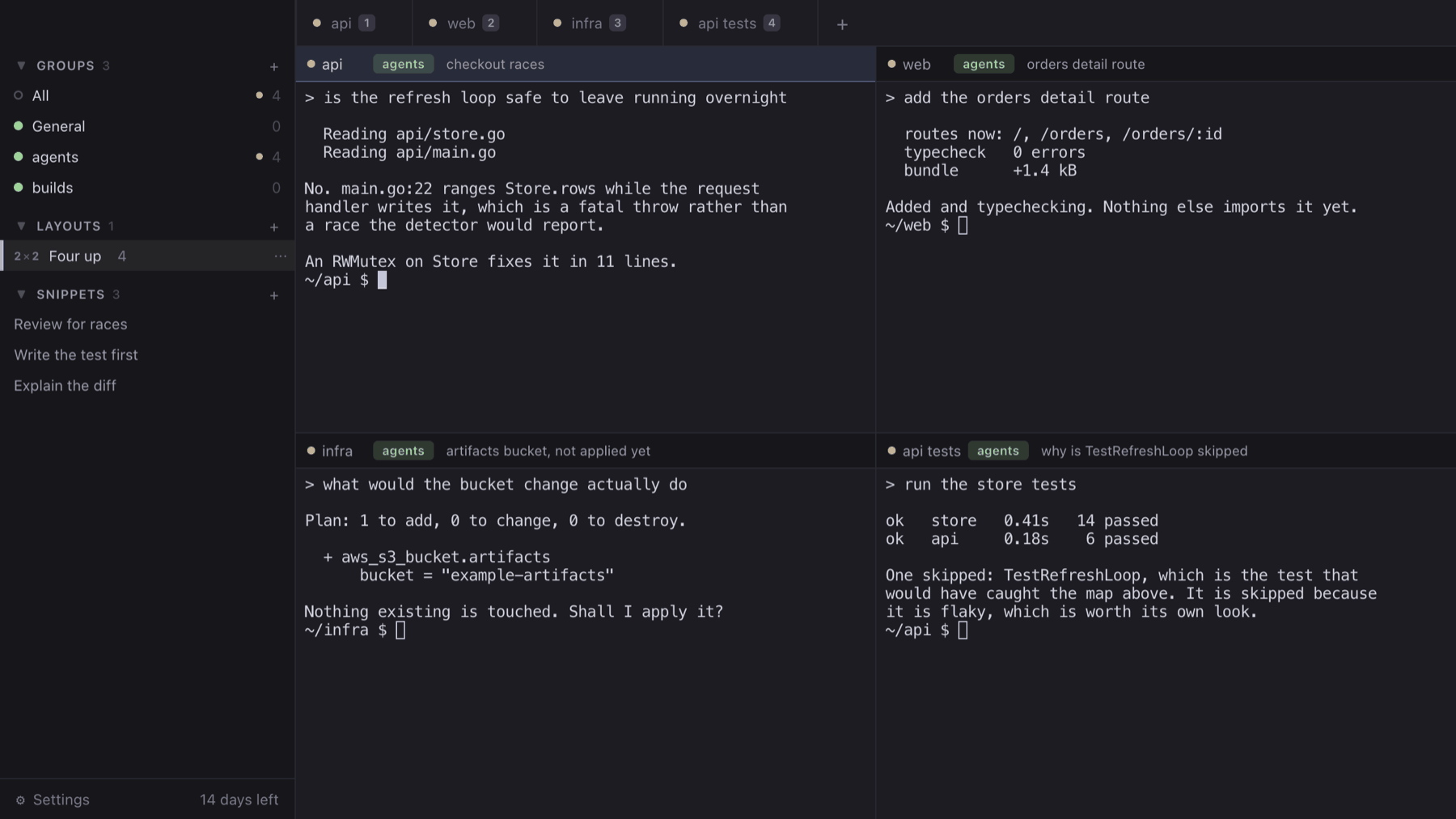
Layouts split the window into panes and load a session into each. Six arrangements are built in, plus a custom grid of up to four columns by four rows. Dragging a tab onto a pane loads that session into it.
Notifications when a session finishes
A desktop notification when a session returns to its prompt, including the one currently on screen, with a configurable sound. A program can also request one directly by printing an escape sequence.
Sessions outlive the window
Closing the window leaves every session running. Quitting prompts first and offers to keep them running from the menu bar. A session that is stopped has its screen restored when it starts again.
Groups, tabs, and snippets
Sessions are tabs, grouped in the sidebar, and a new session inherits its group's working directory. Tabs reorder by dragging. The instructions you retype at an agent are stored as snippets and pasted into whichever session is in front of you.
Feature detail
The rest of the app, by area, with a picture of each part that is easier to look at than to describe. Shortcuts below are the macOS defaults; the Windows and Linux equivalents are listed with them, and all of them can be rebound.
Sessions Tabs, groups, and status
Cmd+T opens a session, Ctrl+T on Windows and Linux. The New session dialog takes a working directory and a list of KEY=value environment variables for that session alone, each layered over the group's and the group's over your global settings, so the usual case is already filled in and the exception is one field. Each tab carries a status dot and an optional note, set when the session starts or afterwards. Tabs reorder by dragging, and Cmd with an arrow key steps through both sessions and groups from inside a terminal.
Layouts Six arrangements plus a custom grid
Custom takes a column and row count, up to four of each, so three sessions across or a 4x3 grid are both available without a preset. A tab can be dragged onto a pane; a pane's context menu replaces or unloads its session, and can start a new one directly into it without leaving the layout. A session displayed in a pane carries that pane's index on its tab.
Terminal Real PTYs and Windows consoles
On macOS each session is a PTY started from the same startup files your shell reads, so PATH and installed tools resolve as they do in any terminal. On Windows they are real consoles, so PowerShell, WSL and Git Bash behave normally, and closing a session terminates the whole process tree rather than the shell alone. Cmd+F searches the scrollback. Scrolling up in an active session holds position, with an indicator showing how many new lines have arrived.
Links Clickable paths and URLs
Cmd+click, or Ctrl+click elsewhere, opens a URL in the browser, a file in its default application, and a directory in Finder or Explorer. An executable is revealed in its directory rather than run. The context menu on a link offers Copy Link and Reveal in Finder. Crosswalk advertises link support to programs in the session, which is what makes most tools emit links at all; it can be disabled in Settings, Terminal.
Copying Copy and Copy Clean
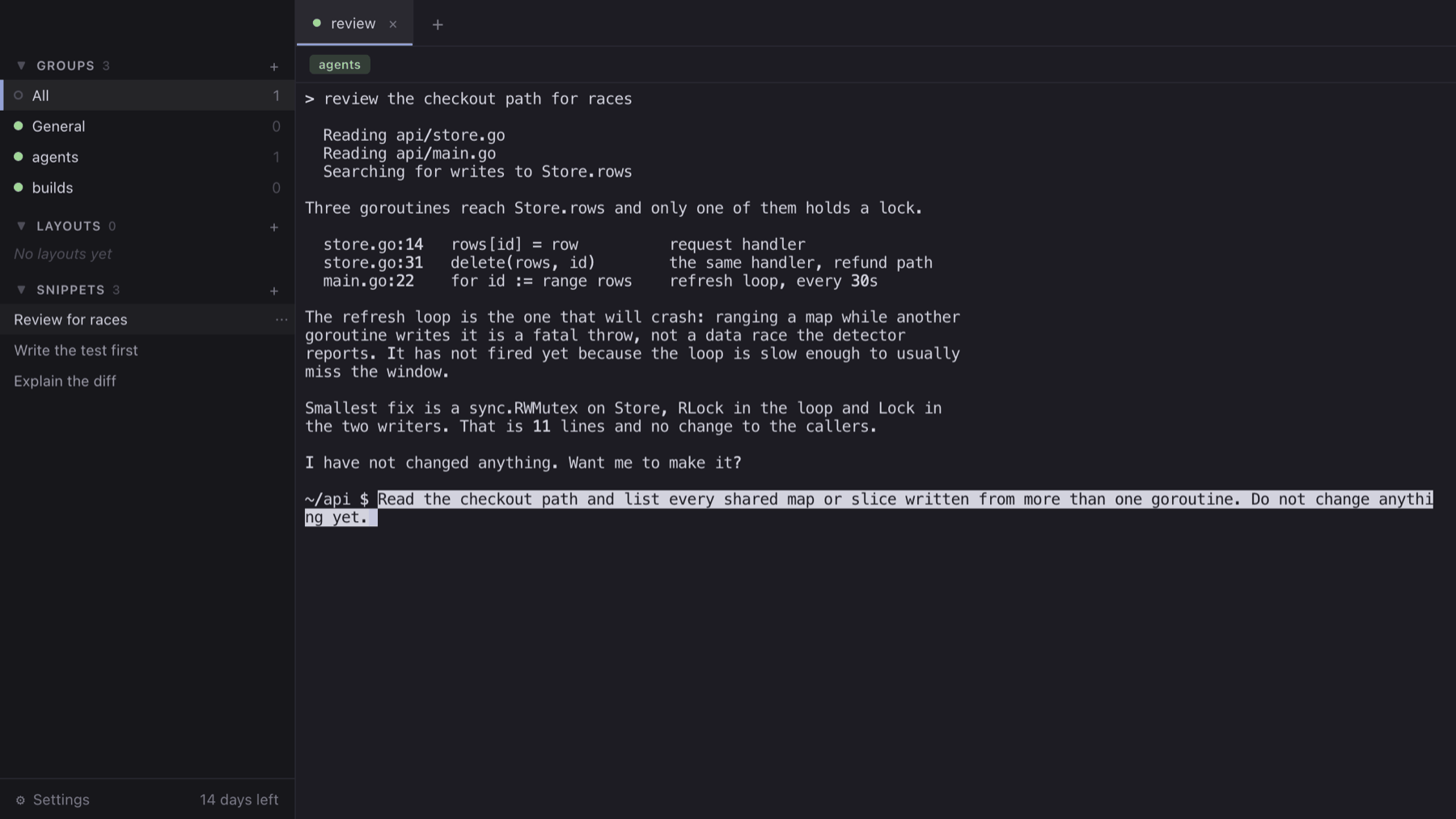
Copy returns the selection exactly as rendered, including the hard line breaks the terminal inserted at the window width and any leading indentation. Copy Clean rejoins those lines and strips the indentation, which is what you want when moving an agent's prose into an editor or an issue. A setting maps Copy Clean onto the copy shortcut instead.
Snippets Stored instructions, pasted into a session
A sidebar section holding reusable text, each entry with a title, a description, and the instructions themselves. Clicking one pastes it into the focused terminal and leaves the cursor there; it is pasted rather than submitted, so it can be edited before it runs. A selection in a terminal can be saved as a snippet from the context menu, and an existing snippet's three fields can be pasted or copied individually.
Notifications Escape sequence, HTTP endpoint, or idle detection
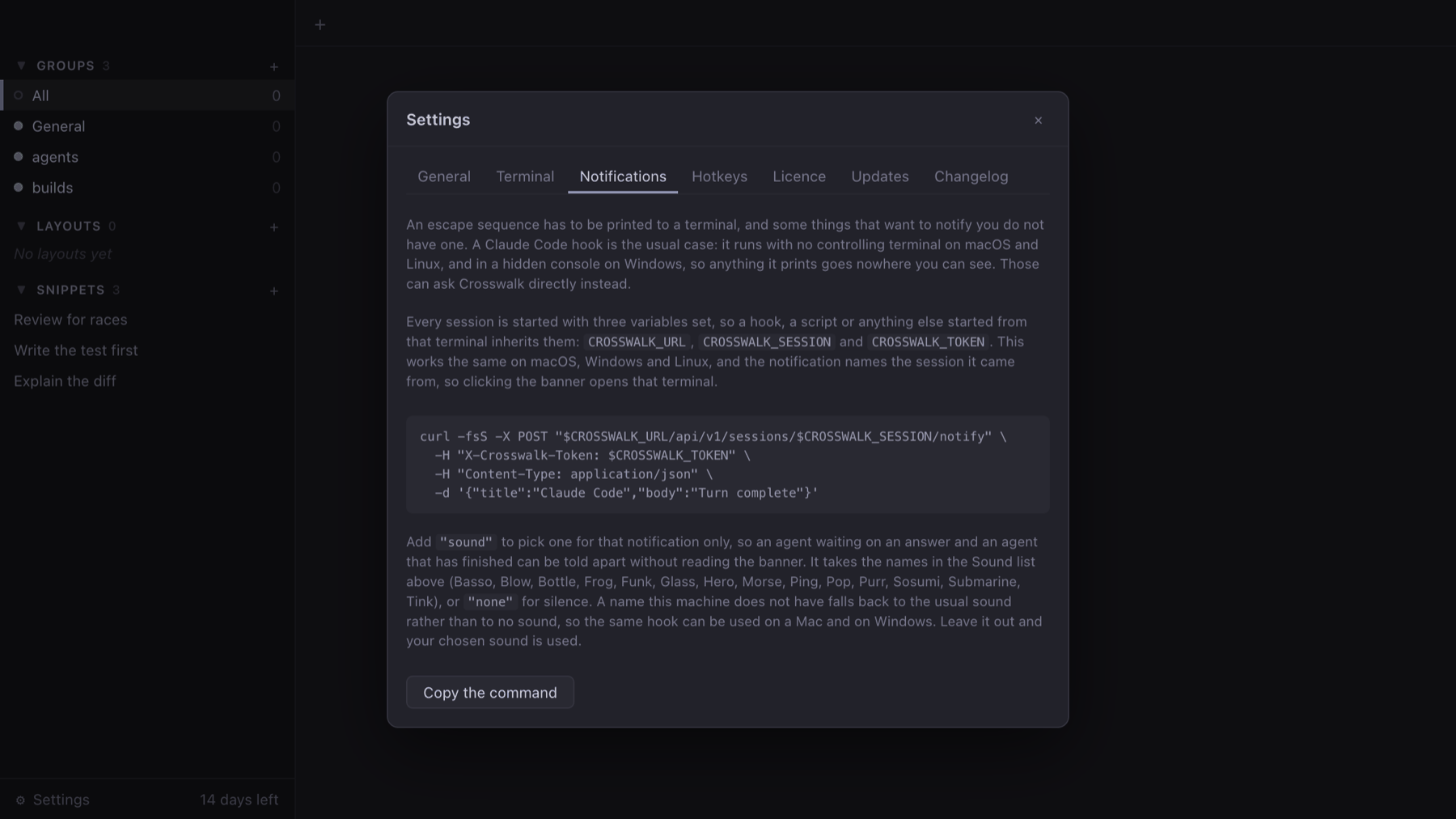
A program in a session requests a notification by printing an escape sequence. For hooks that run without a terminal, such as a Claude Code stop hook, every session is started with the address and token needed to call Crosswalk's notify endpoint directly; Settings, Notifications has the curl command. Each request can name its own sound. Crosswalk can also raise one itself when a session goes idle, with a configurable threshold, defaulting to six seconds. Clicking a notification focuses the session that sent it.
Keyboard Rebindable shortcuts
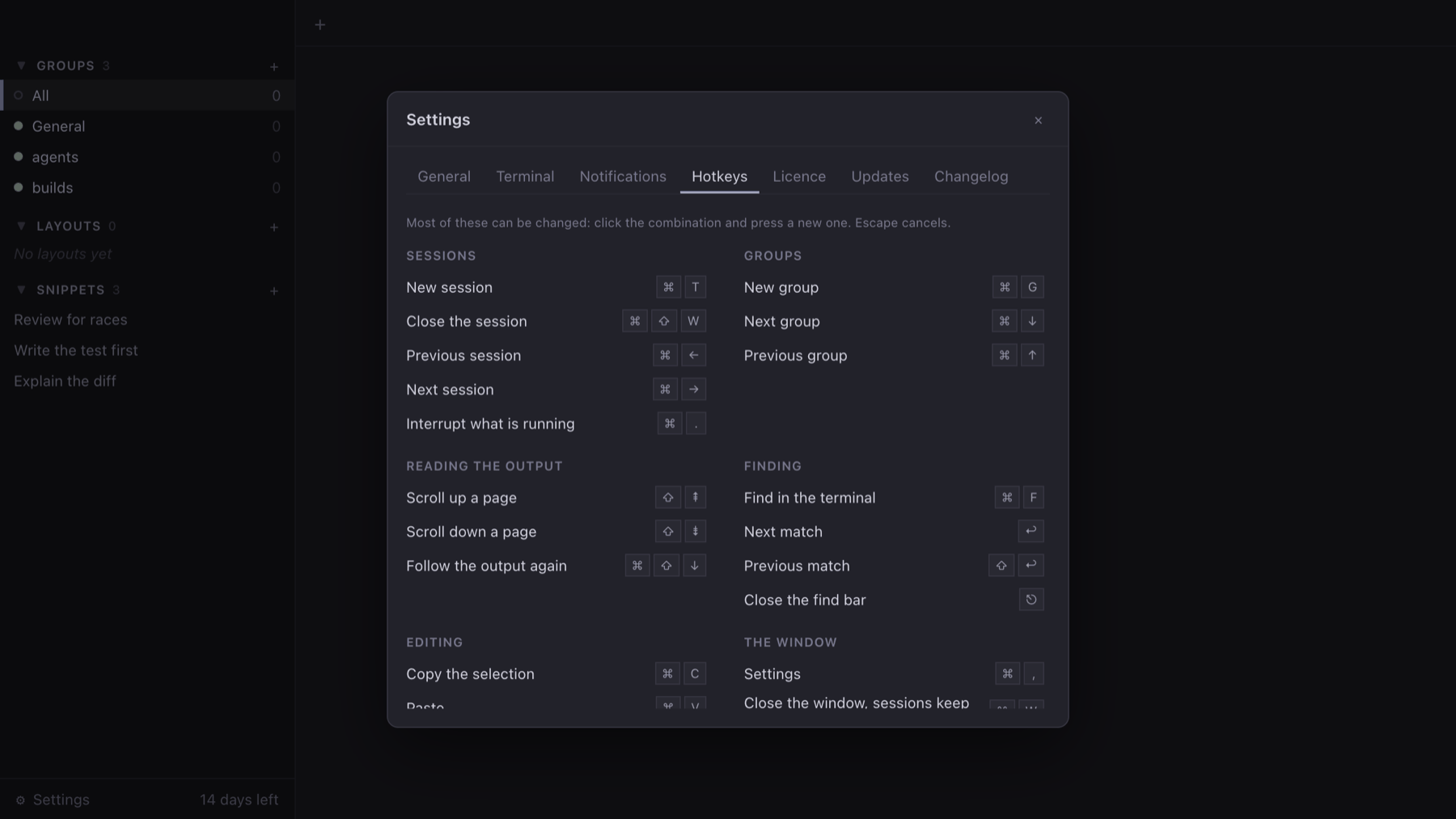
Settings, Hotkeys lists every binding; click one and press the replacement. It applies immediately, in the menus as well as the terminal, and persists across restarts. A conflict reports which action already holds the combination, and a combination the shell uses reports what the shell will stop receiving. Defaults follow platform convention, so plain Ctrl is left to the terminal on Windows and Ctrl+C still sends SIGINT.
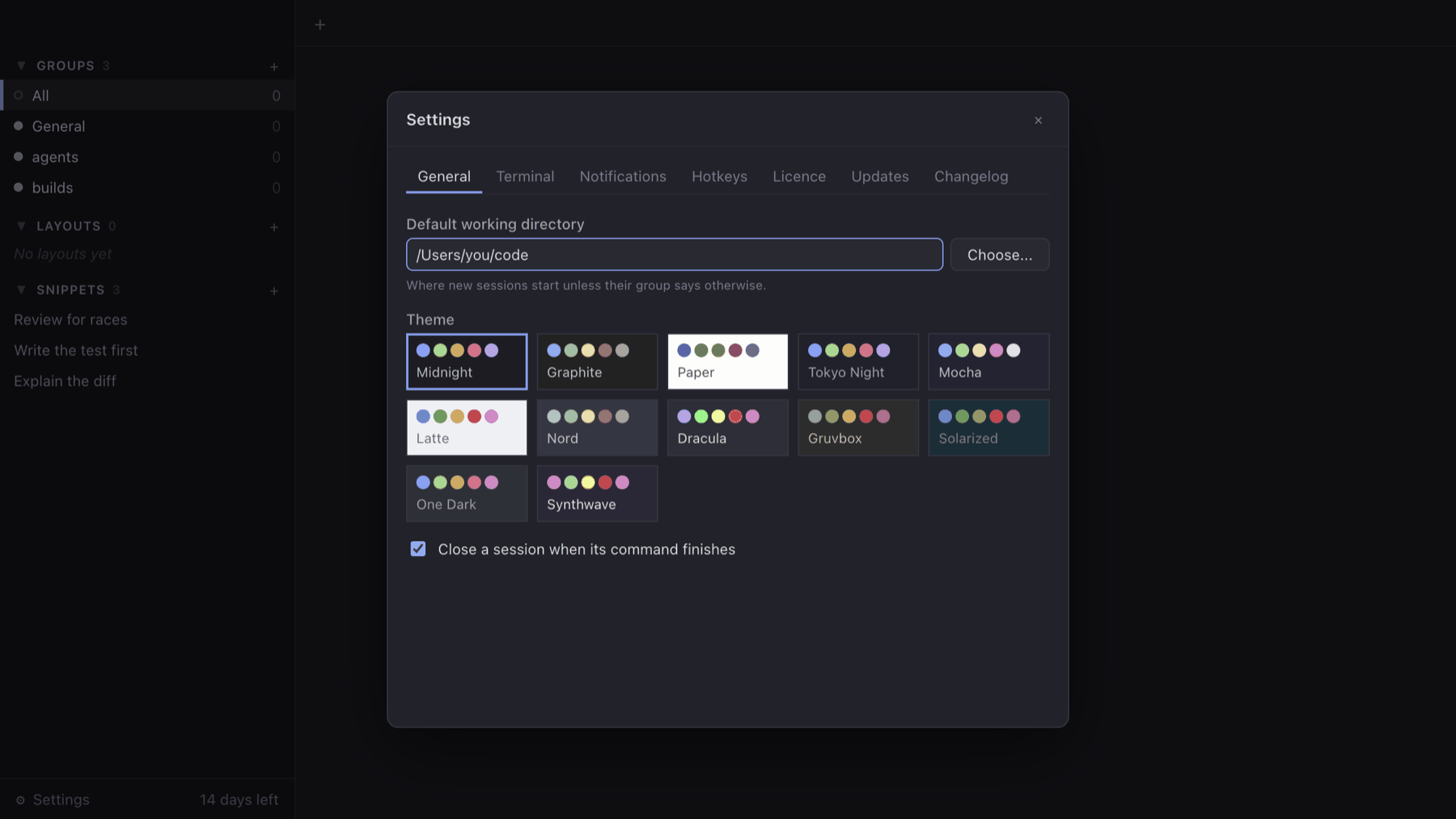
Themes Twelve built in
Midnight, Graphite, Paper, Tokyo Night, Mocha, Latte, Nord, Dracula, Gruvbox, Solarized, One Dark and Synthwave, selected from swatches rather than a list of names. Selection highlighting is drawn so that low-contrast foreground colours, including the dim grey many agents use, stay readable in every theme.
Requirements
Version 0.8.2. macOS 13 or later, universal binary for Apple silicon and Intel, 238 MB, signed and notarized.
The Windows build is a beta. Windows 10 version 1809 or later, 64-bit, 117 MB. It is the same application and it is signed, but the certificate has little SmartScreen reputation so far, so Windows may warn before running it: choose More info, then Run anyway. Bug reports against the beta are useful, so please send them.
Trial and licence
Crosswalk is free for fourteen days, with no features withheld and no account to create. When the trial expires, sessions that are already running continue and stay fully usable; starting a new one requires a licence key. Nothing running is terminated by the expiry.
A licence is $14.99, a one-time purchase rather than a subscription. It is validated locally, so there is nothing to sign in to, no licence server to depend on, and it works with no network connection.
The key is emailed within a minute of payment. If it does not arrive, check spam, then contact support.
Updates
Crosswalk checks for a new version in the background and downloads it, then waits. It does not restart itself: a restart stops every running session, and the agents in them do not resume with the window. Apply the update when you choose, from the Crosswalk menu, or let it install the next time you quit.
Support
Email support at wareshq dot com. Include your macOS or Windows version, the Crosswalk version from the About panel, and what you were doing when the problem occurred. Windows beta reports are prioritised, so say which platform you are on.
Privacy: Crosswalk has no account and collects nothing about you or what you run. The only request it makes to us is the update check. Read the privacy policy.
Crosswalk is from WaresHQ, which builds practical apps that solve modern problems. See the others.